


Adding text to anime cartoon stickers can significantly enhance their appeal and personalization. As an Anime Cartoon Stickers supplier, I'm here to share some practical and creative ways to achieve this.
Why Add Text to Anime Cartoon Stickers?
Before delving into the methods, let's understand why adding text to anime cartoon stickers is a great idea. Text can convey a message, add humor, or provide context to the sticker. It can turn a simple image into a powerful form of self - expression. For example, a cute anime character sticker can become even more engaging when accompanied by a funny catchphrase or a meaningful quote.
Tools Required
To add text to anime cartoon stickers, you'll need a few basic tools. Firstly, a good image editing software is essential. Programs like Adobe Photoshop, GIMP (a free and open - source alternative), or Canva are popular choices. These tools offer a wide range of text options, including different fonts, colors, and styles.
Step - by - Step Guide
- Select Your Sticker Image
- Start by choosing the anime cartoon sticker you want to add text to. You can use your own original designs or select from a collection of high - quality stickers available on our Anime Cartoon Stickers page. Make sure the image is in a suitable format, such as JPEG or PNG.
- Open the Image in Your Editing Software
- Launch your chosen image editing software and import the sticker image. In Adobe Photoshop, you can go to "File" > "Open" and select the sticker file. In GIMP, it's similar: "File" > "Open". Canva has a user - friendly interface where you can upload your image easily.
- Choose the Text Tool
- In most image editing software, the text tool is represented by a letter "T". Click on it to activate the text function.
- Select the Font and Style
- There are countless fonts available, from cute and bubbly to bold and edgy. Consider the style of your anime sticker when choosing a font. For a kawaii - style sticker, a rounded and playful font might be a good choice. You can also adjust the size, color, and alignment of the text.
- Position the Text
- Drag the text box to the desired location on the sticker. Make sure it doesn't cover important parts of the anime image. You can also use the alignment tools to center, left - align, or right - align the text.
- Add Effects (Optional)
- To make the text stand out, you can add effects such as shadows, outlines, or gradients. In Adobe Photoshop, you can find these options in the "Layer Styles" panel. GIMP also offers similar effects under the "Layer" > "Layer Effects" menu.
- Save Your Sticker
- Once you're satisfied with the text and its appearance, save the sticker. Choose a high - resolution format like PNG to preserve the quality.
Different Text Placement Strategies
- Overlaying on the Character
- You can place the text directly on the anime character. For example, if the character has a blank area on their shirt or a speech bubble, you can add text there. This creates a direct connection between the character and the message.
- Surrounding the Character
- Another option is to place the text around the character. This can create a frame - like effect and draw attention to both the character and the text.
- In a Separate Area
- If you don't want the text to interfere with the character, you can place it in a separate area of the sticker, such as at the bottom or top.
Using Text for Different Purposes
- Promotional Text
- If you're using the stickers for promotional purposes, you can add text like "Limited Edition", "Get Yours Now", or the name of your brand. This can help increase the visibility and desirability of your stickers.
- Personal Messages
- For personal use, you can add messages like "Love You", "Good Luck", or a favorite quote. These stickers can be great gifts for friends and family.
- Instructional Text
- In some cases, you might want to add instructional text, such as "Peel and Stick", or "Apply to Clean Surface". This can be useful for customers who are new to using stickers.
Tips for a Professional Look
- Keep it Simple: Avoid overcrowding the sticker with too much text. A simple and clear message is often more effective.
- Match the Color Scheme: Choose a text color that complements the colors of the anime sticker. This will create a harmonious and visually appealing look.
- Test Different Fonts: Don't be afraid to experiment with different fonts until you find the one that best suits the style of your sticker.
Applications of Text - Added Anime Stickers
- Decoration
- Text - added anime stickers can be used to decorate various items, such as laptops, notebooks, phone cases, and water bottles. They can add a personal touch to these everyday objects.
- Marketing
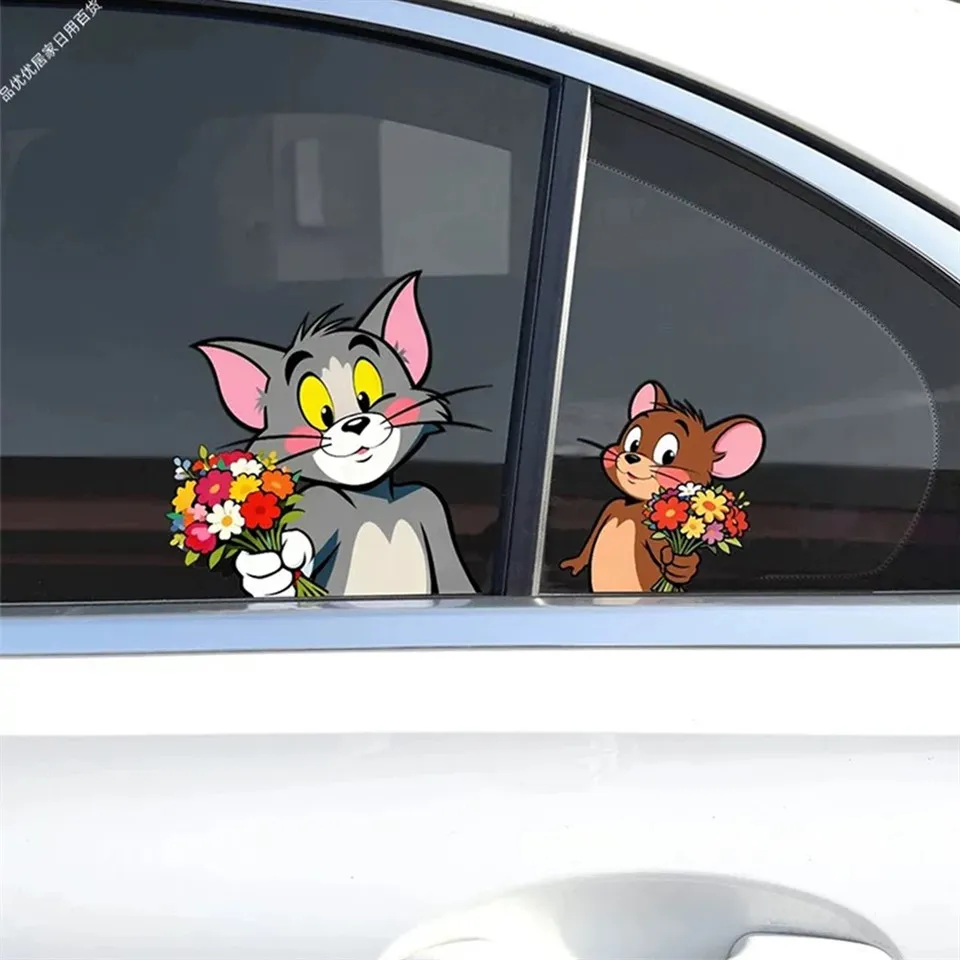
- Businesses can use these stickers as promotional items. For example, you can distribute them at events or include them in product packages. Our Cartoon Car Window Stickers with added text can be a great way to promote your brand on the go.
- Gifting
- Personalized anime stickers with text make excellent gifts. You can create custom - made stickers for birthdays, anniversaries, or other special occasions.
Contact for Purchase and Collaboration
If you're interested in purchasing our high - quality anime cartoon stickers or have any questions about adding text to them, we'd love to hear from you. Our team is ready to assist you in creating the perfect stickers for your needs. Whether you're an individual looking for a unique gift or a business in need of promotional materials, we have the solutions for you. Reach out to us to start a discussion about your requirements.

References
- Adobe Photoshop User Guide
- GIMP Documentation
- Canva Help Center
